Workspace setup · Video and guide · 1 min read · Dashboard
Set up deal stages and lost reasons
You set the stages a deal moves through, and the reasons you pick when a lead or deal is lost. Use it so your board and your reports use your own words.
Available on paid plans. Lost reasons work in every workspace.
Can't play it here? Watch it on YouTube
Steps
- 1
In the dashboard, open Settings, then Deal Stages.
- 2
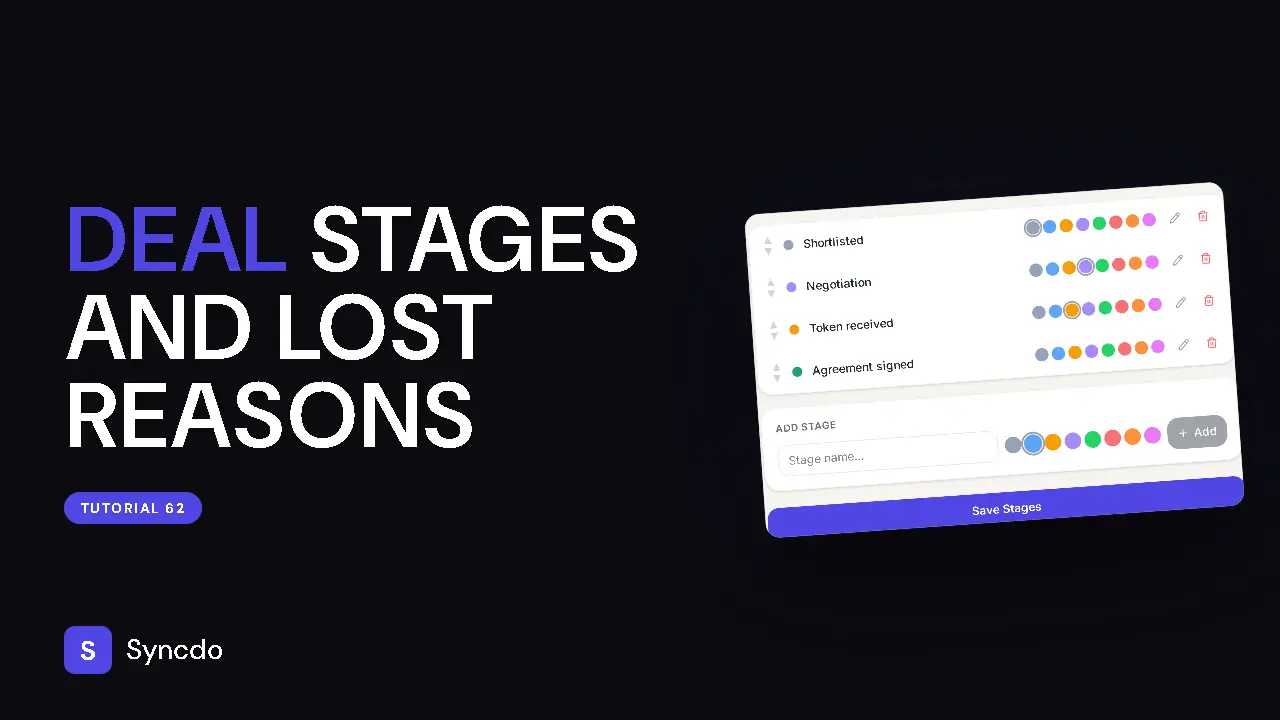
Use the arrows to reorder.
The pencil renames. The bin removes a stage. If deals are on it, Syncdo asks where to move them.
- 3
Type a name in Add Stage, click Add, then Save Stages.
- 4
Open Settings, then Lost Reasons.
It holds two lists: lead lost reasons and deal lost reasons. Add, rename or remove, then save. Changes apply from now on.